
How do I add items to my cart?
How do I add items to my cart — quick answer with steps and helpful context for Javern users.
Updated 31 July 2026
Overview
Adding an item to your cart saves it so you can pay for one or more products at the same time during checkout.
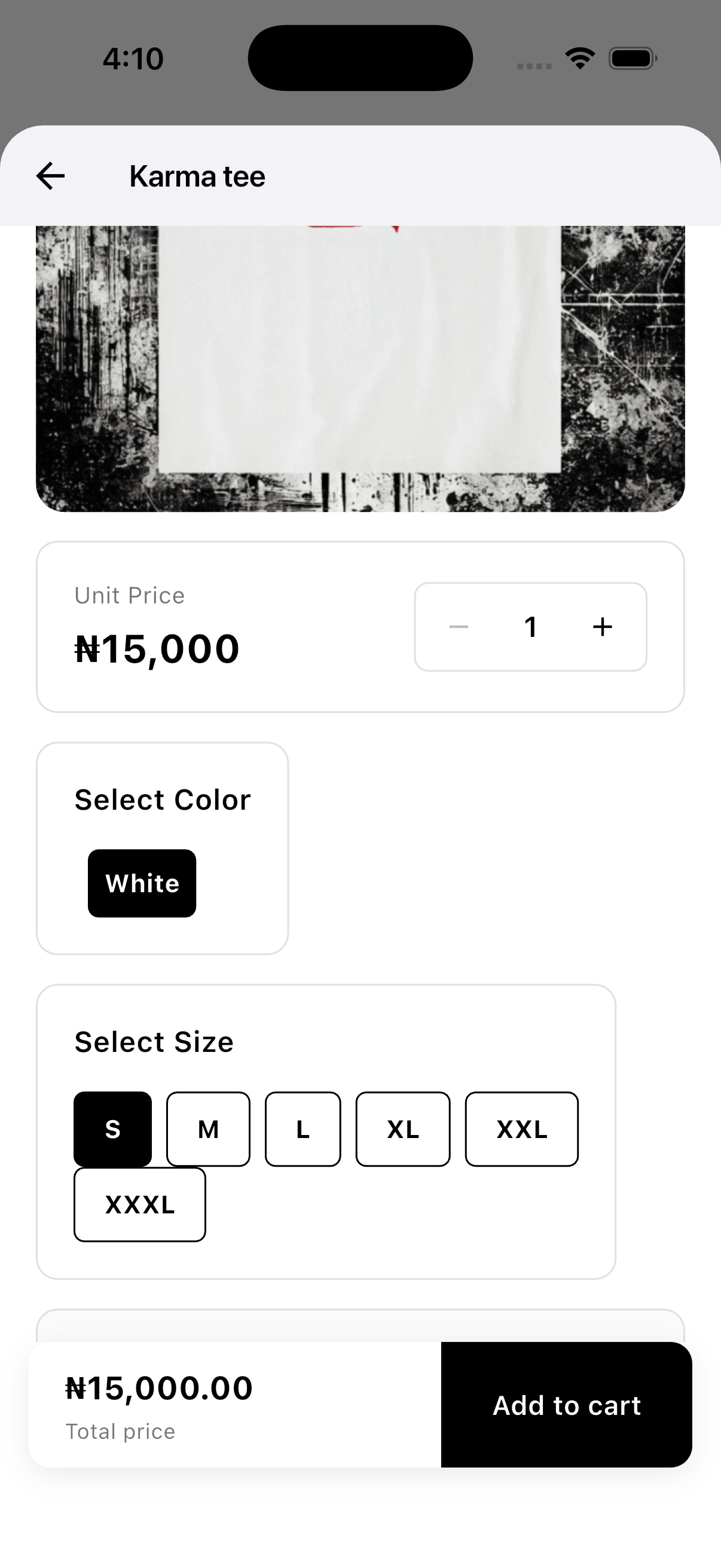
Add to cart on the mobile app
- Open the Javern App from the App Store or Google Play Store.
- Tap a product to open its details.
- Choose your size and colour if the product has options.
- Set the quantity you want.
- Tap "Add to Cart" at the bottom of the screen.
- A confirmation will appear and you will be redirected to your store carts page.
Add to cart on the website
- Visit our website Javern and open a product.
- Select your size and colour, and set the quantity.
- Click "Add to Cart".
- A confirmation will appear and you will be redirected to your store carts page.
Good to know
- Items stay in your cart until you check out or remove them.
- Adding an item does not reserve stock — a product can still sell out before you complete checkout.
- Adding items from different stores will create different carts, each one containing products from a specific store. See How do I buy from multiple stores?.
Still need help?
If this didn't fully answer your question, contact our support team and we'll follow up.
Was this article helpful?
Can't find what you need? Reach out to our team.