
How do I remove items from my cart?
How do I remove items from my cart — quick answer with steps and helpful context for Javern users.
Updated 31 July 2026
Overview
You can remove any item from your cart at any time before you check out.
Remove items on the mobile app
- Open the Javern App from the App Store or Google Play Store.
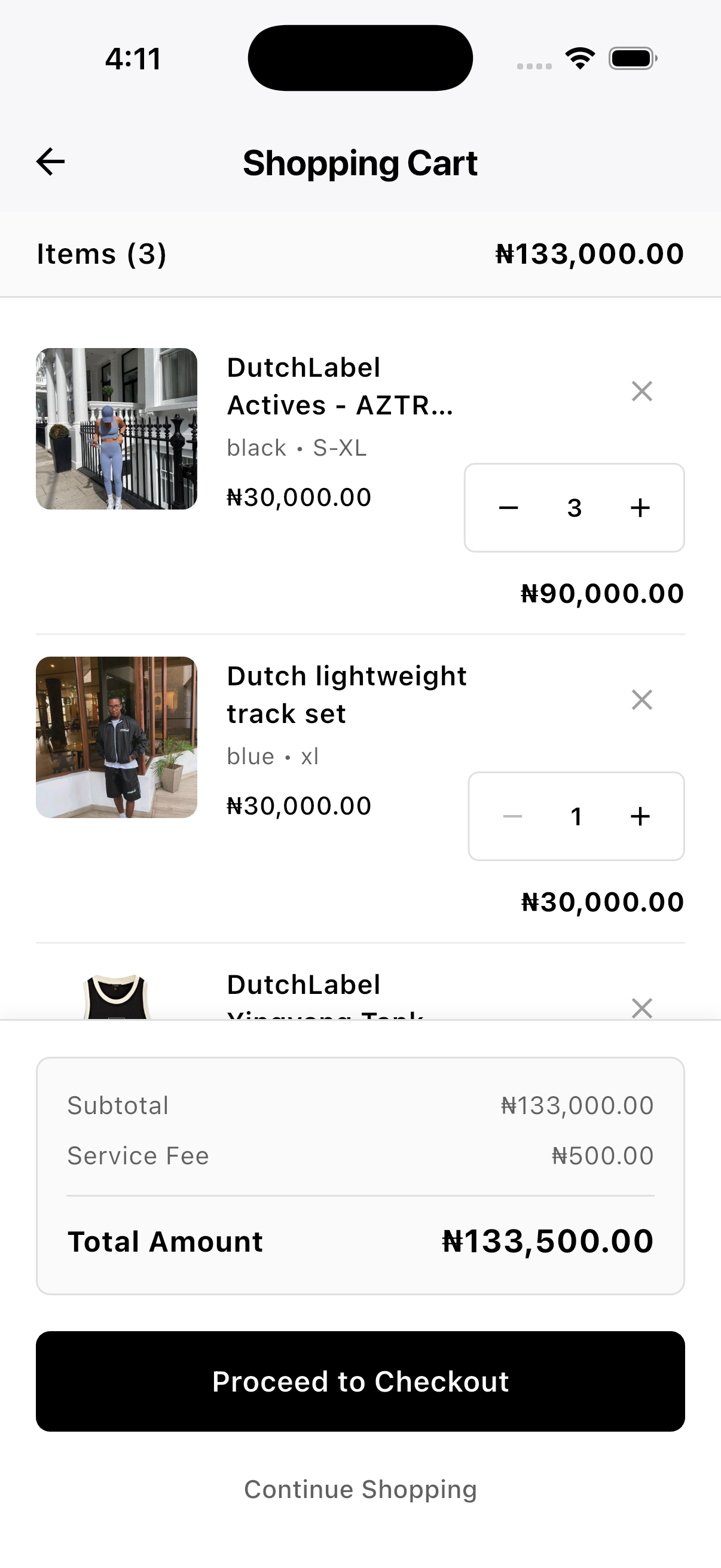
- On the taskbar, tap the cart icon.
- Find the item you want to remove.
- Swipe the item left and tap "Remove", or tap the X icon on the item.
- Confirm the removal if prompted. The cart total updates instantly.
Remove items on the website
- Visit our website Javern and sign in.
- Click the cart icon at the top right of the page.
- Click the X icon next to the item you want to remove.
- The item disappears from your cart and the total updates.
Change quantity instead of removing
If you only want fewer of an item instead of none, tap or click the minus (–) button next to the quantity to reduce it. Setting the quantity to zero removes the item.
Still need help?
If this didn't fully answer your question, contact our support team and we'll follow up.
Was this article helpful?
Can't find what you need? Reach out to our team.