How do I filter products?
How do I filter products — quick answer with steps and helpful context for Javern users.
Updated 31 July 2026
Overview
Filters help you narrow product listings by size, colour, price, brand and more so you only see what fits what you're looking for.
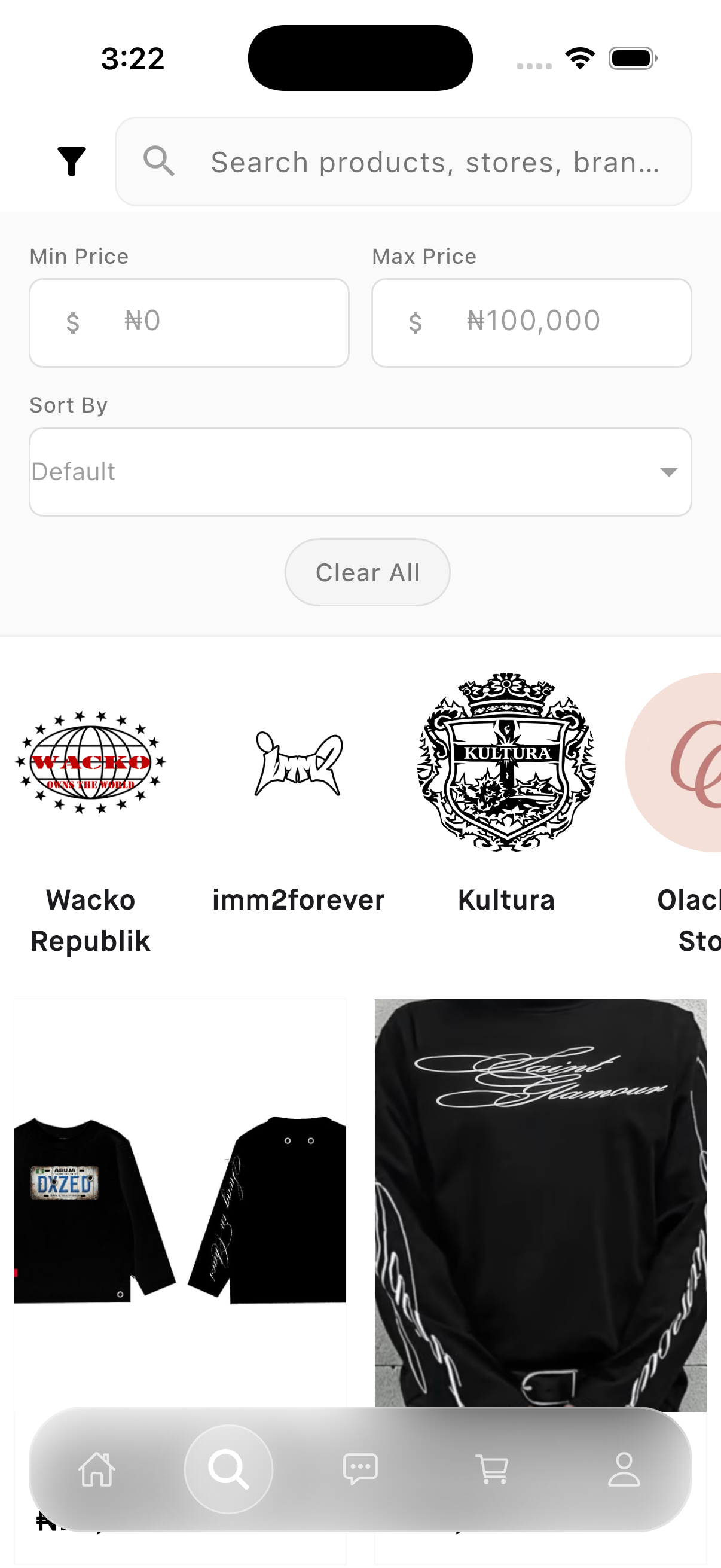
Filter on the mobile app
- Open the Javern App from the App Store or Google Play Store.
- Open a category from the home feed or run a search.
- Tap "Filter" at the top of the results.
- Pick the options you want — for example a size, colour, price range or brand.
- Tap "Apply Filters" and the results will update instantly.
- To clear filters, tap "Clear All" at the top of the filter panel.
Filter on the website
- Visit our website Javern and open a category or search results page.
- Use the filter panel on the left of the page.
- Tick the options you want — size, colour, price, brand and more.
- The results update as you select each filter.
- Click "Clear All" to remove every filter and start over.
Available filters
- Size — pick one or more sizes you actually wear.
- Colour — filter by colour family.
- Price range — set a minimum and maximum.
- Designer — narrow to a specific designer.
- Category — narrow to a specific category.
- Sub Category — narrow to a specific sub category.
Still need help?
If this didn't fully answer your question, contact our support team and we'll follow up.
Was this article helpful?
Can't find what you need? Reach out to our team.